Halloween con IA: 4 vídeos virales y todos sus prompts
Así creé estos vídeos con mis avatares en PixVerse. Copia los prompts y hazlos tú.
¿Quieres aprenderlo paso a paso, con cada modelo y cada plataforma? Lista de espera →< Vampira y hombre lobo en la discoteca />
Cómo hacerlo
- Crea las imágenes con estos prompts, adjuntando la hoja de personaje de tu avatar (o una foto tuya) como referencia.
- En PixVerse, busca el vídeo en la galería de vídeos públicos.
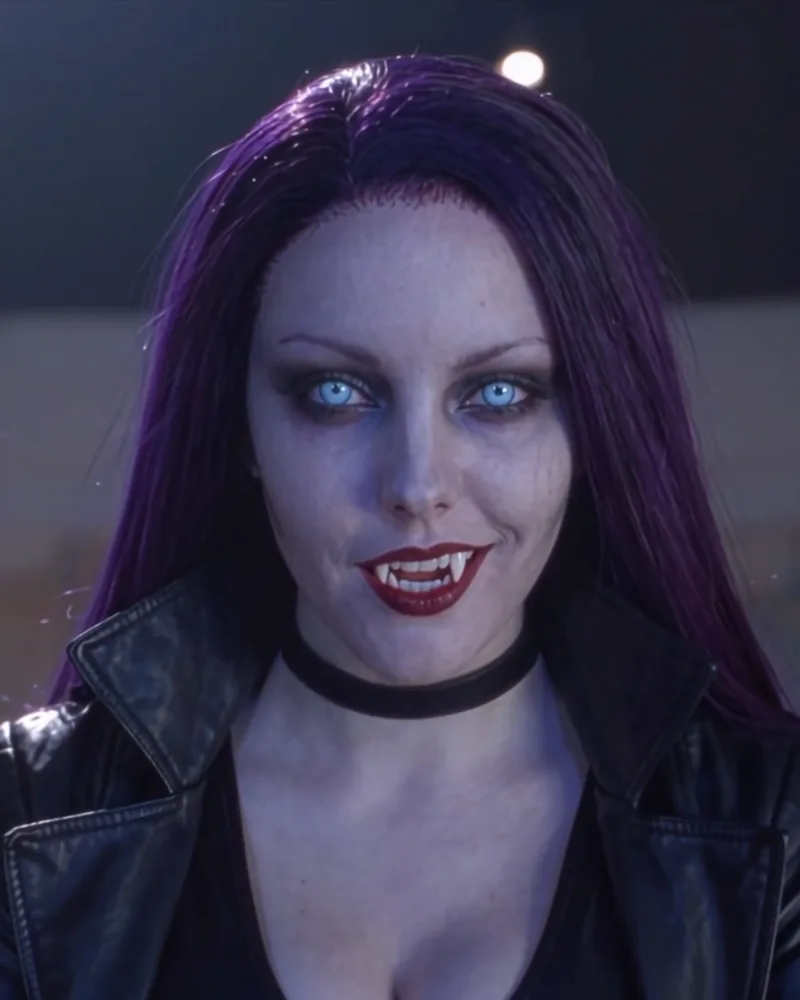
- Pon tus imágenes en lugar de las originales: la vampira como
@image1y el hombre lobo como@image2. - Modifica el prompt con el de abajo, adaptándolo a tus personajes, y genera con Wan 3.0.
La canción del vídeo es «Romance oscuro», el bonus track de Origen, el disco de Nyxia. Escúchalo entero →
Las imágenes y sus prompts
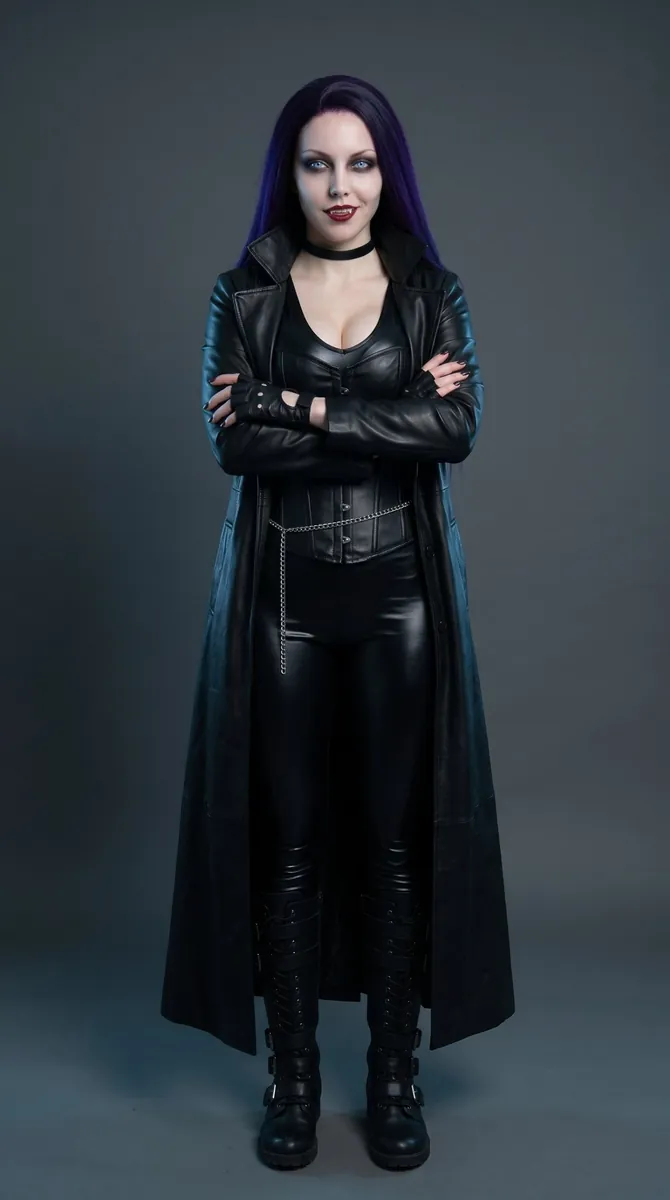
Use the woman from the reference image: keep her exact face, long straight dark purple hair and black choker. Full-body photo, standing in a confident pose, facing the camera, neutral dark grey studio background, cold cinematic lighting with a subtle blue tint, photorealistic.
Outfit: modern gothic vampire warrior — form-fitting glossy black leather bodysuit with a black leather corset over it, moderate neckline, a long black leather trench coat flowing open to her ankles with a high collar, black fingerless leather gloves, a slim silver chain belt, tall black combat boots with buckles.
Look: porcelain skin, glowing ice-blue eyes, dark smoky eyeshadow, deep red lips, small sharp fangs visible in a slight smirk. Powerful, cold, magnetic expression, arms crossed. No text, no logos.
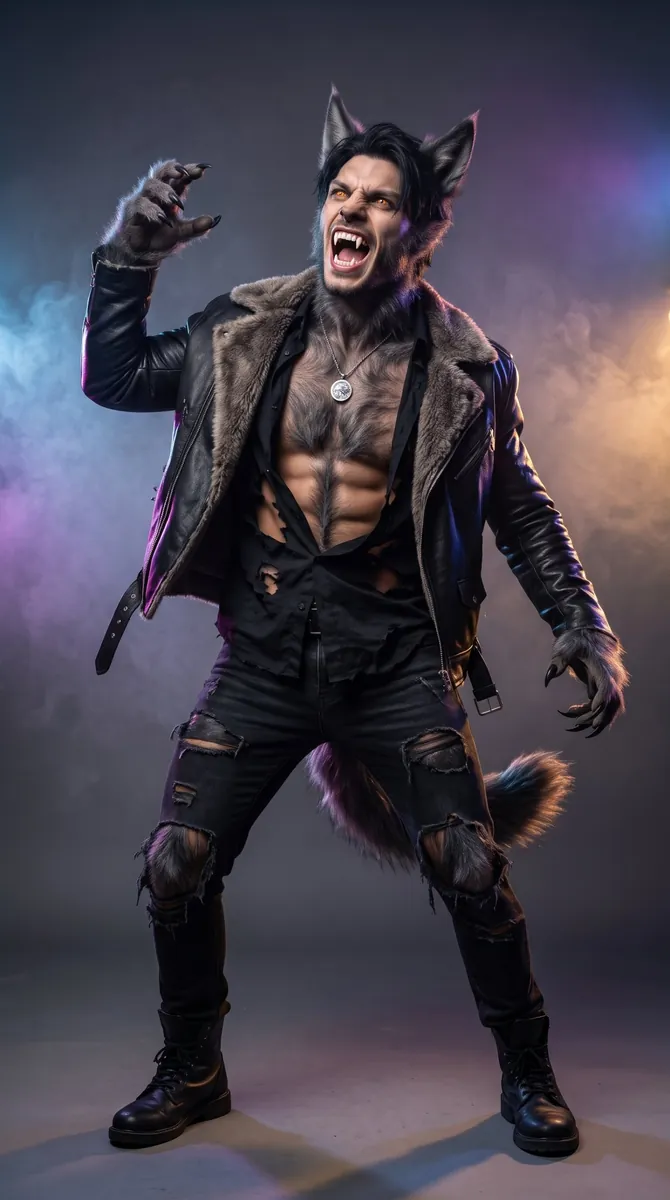
Use the man from the reference image: keep his eye shape, facial structure and dark hair recognizable. Full-body photo, neutral dark grey studio background with soft coloured club lights, cinematic, photorealistic.
Transformation: clearly mid-transformation werewolf — thick dark grey fur growing along his jaw, cheeks and neck, tall pointed furry wolf ears rising through his hair, a slightly wolfish nose bridge, glowing amber eyes, long sharp fangs, both hands turned into furry wolf paws with long black claws, thick fur on his forearms and chest, a bushy dark grey wolf tail.
Outfit: torn black shirt hanging open and ripped by the transformation, fur-lined black leather jacket, ripped dark jeans shredded at the knees, heavy black boots, a silver full-moon pendant.
Pose: mid dance move, one paw raised, head tilted back howling with a big grin. No text, no logos.
Prompt del vídeo
Replace the figures in @video1 with those from @image1 and @image2: replace the first person (who is leaning/resting against a railing) with the woman from @image1 — fully replacing their appearance and clothing with her long straight dark purple hair, black leather vampire outfit, long leather coat, glowing ice-blue eyes and fangs — including shots where she is seen from behind or facing away from the camera, where her long purple hair and leather coat must be visible. Replace the second person (the dancer) with the man from @image2 — fully replacing their appearance and clothing with his werewolf look: furry wolf ears, fur on his face and chest, wolf paws with claws, bushy tail, torn black shirt, fur-lined leather jacket and ripped jeans. Retain the background, lighting, camera movement and facial expressions from @video1; the figures from @image1 and @image2 should mimic the actions in @video1 without including the backgrounds from the source images. Keep both faces consistent with @image1 and @image2 throughout. No text, no logos.
< El ventilador: cinco disfraces estilo Tim Burton />
Cómo hacerlo
- Crea la habitación y los cinco disfraces con estos prompts, adjuntando la hoja de personaje de tu avatar (o una foto tuya) como referencia.
- En PixVerse, busca el vídeo en la galería de vídeos públicos.
- Pon tus imágenes en lugar de las originales: la habitación como
@image1y los disfraces como@image2a@image6, en este orden: rayas, porcelana, bailarina, jardín marchito y circo. - Modifica el prompt con el de abajo, adaptándolo a tus personajes, y genera con Seedance 2.5.
El vídeo de la galería solo se usa como guía de movimiento: tus personajes sustituyen a los originales.
Las imágenes y sus prompts
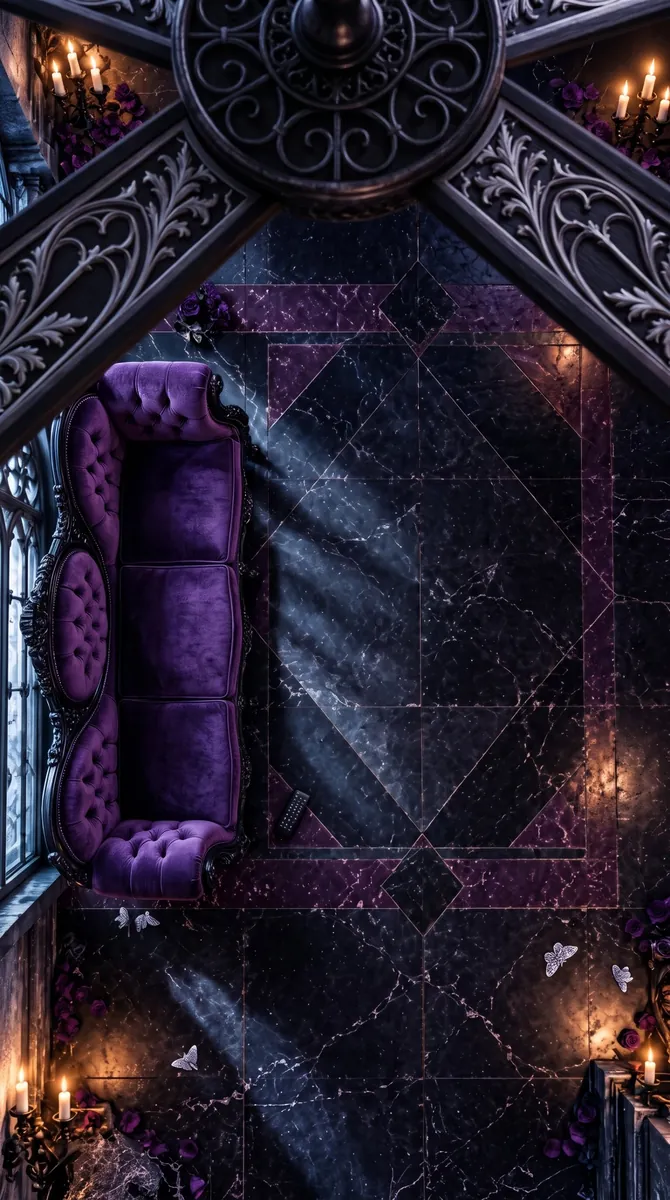
Top-down overhead photo looking straight down from the ceiling, vertical 9:16, photorealistic, cinematic.
Foreground, top of the frame: an ornate gothic ceiling fan seen from below, close to the camera and softly out of focus, with a dark wrought-iron centre and four long blades shaped like carved moth wings in black wood with silver filigree.
Below, the floor of a gothic Victorian parlour: polished black marble with fine violet veins, inlaid with a large geometric pattern of deep purple and silver marble around an empty central area where a person could lie down.
Left side: a long tufted deep purple velvet chaise sofa with carved black wooden legs, a black remote control lying on the floor next to it.
Corners: tall black iron candelabras with lit candles, scattered dark purple and black roses, a few small silver moths resting on the floor, faint moonlight coming through a tall gothic window on one side, casting soft blue window-shaped light across the marble.
Moody, elegant, dark fairy-tale atmosphere, warm candlelight mixed with cool moonlight. No people, no text, no logos.
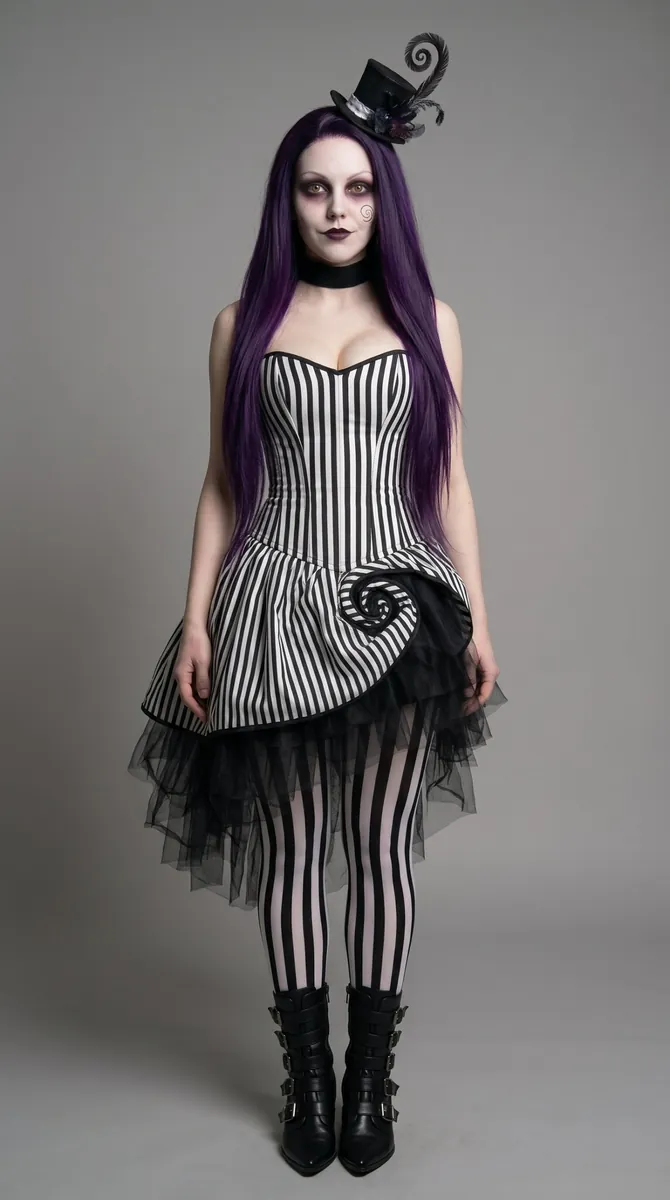
Use the woman from the reference image: keep her exact face, long straight dark purple hair and black choker. Full-body photo, neutral grey studio background, soft cinematic lighting, photorealistic.
Outfit: whimsical gothic Tim Burton style — fitted black and white vertical-striped corset dress with a moderate neckline, a short skirt shaped like a curling spiral with layered black tulle underneath, black and white striped stockings, pointed black buckle boots, a tiny crooked top hat with a spiral feather.
Makeup: pale porcelain skin, dark sunken eye shadows, thin spiral drawn on one cheek, deep plum lips. Slightly eerie, playful look. No text, no logos.
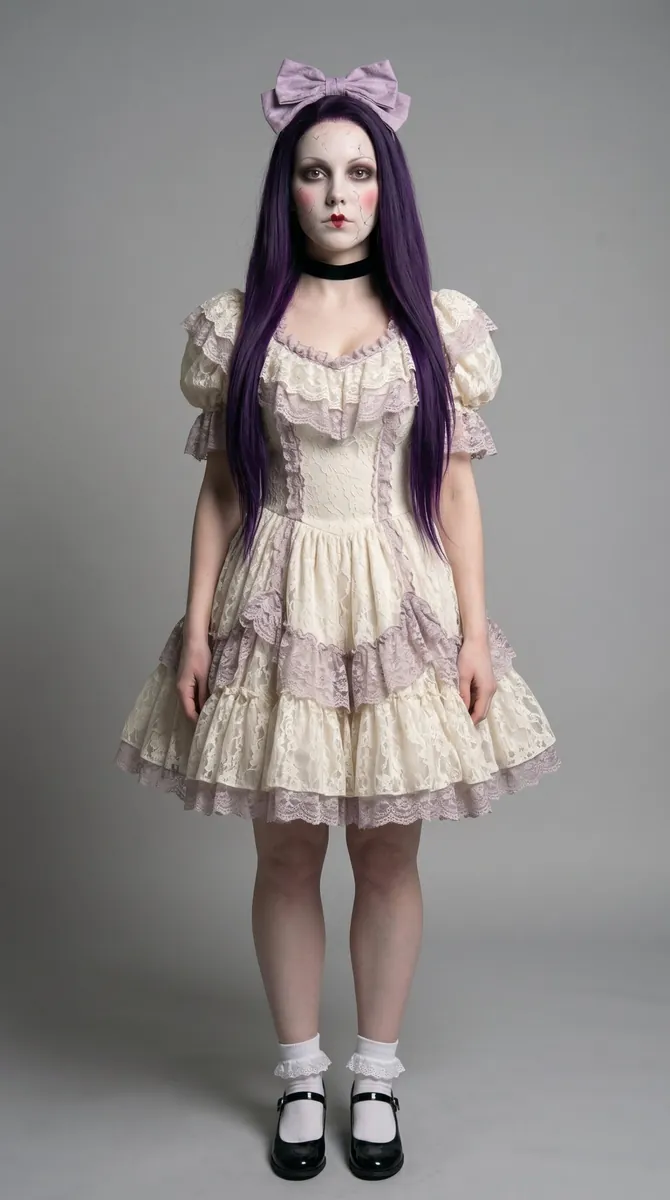
Use the woman from the reference image: keep her exact face, long straight dark purple hair and black choker. Full-body photo, neutral grey studio background, soft cinematic lighting, photorealistic.
Outfit: Tim Burton style "broken porcelain doll" — antique ivory and dusty-lilac Victorian lace dress with puffed sleeves and a moderate neckline, short layered petticoat, white frilly socks with black Mary Jane shoes, an oversized faded lilac bow in her hair.
Makeup: glossy white porcelain skin with fine painted cracks across one cheek and forehead, round rosy doll cheeks, dark shadows around big doll-like eyes, small heart-shaped dark red lips. Still, slightly unsettling expression. No text, no logos.
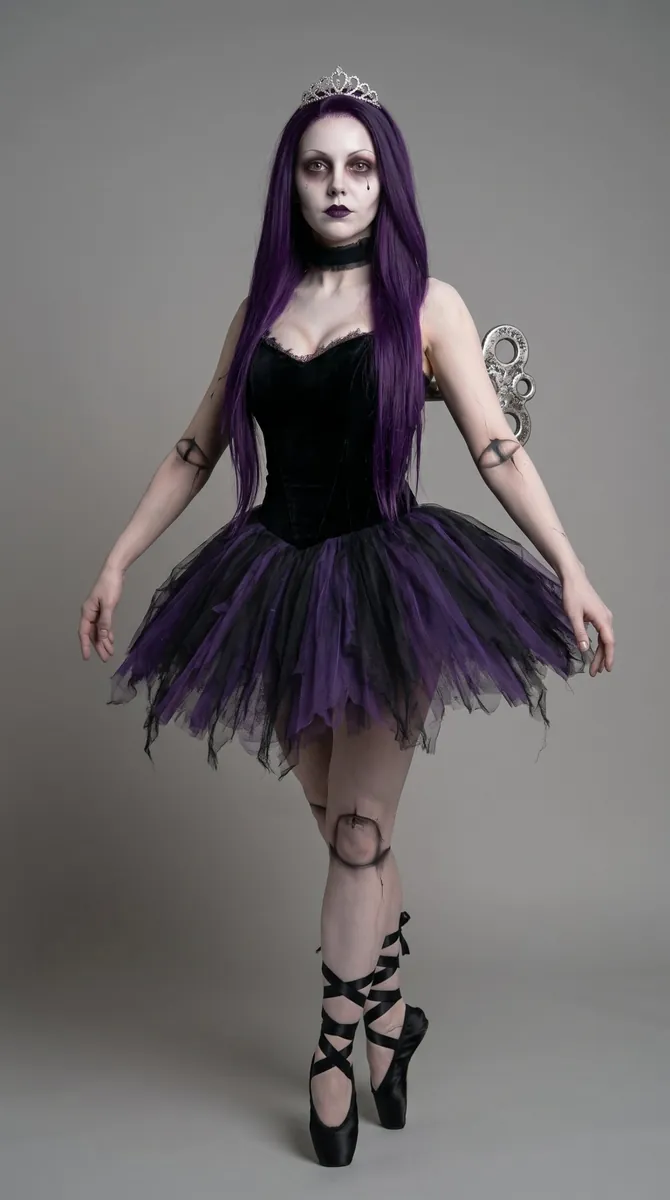
Use the woman from the reference image: keep her exact face, long straight dark purple hair and black choker. Full-body photo, neutral grey studio background, soft cinematic lighting, photorealistic.
Outfit: Tim Burton style "macabre music box ballerina" — black velvet bodice with a moderate neckline, a stiff black and violet tutu with torn edges, a large silver wind-up key on her back, painted doll joint lines at her elbows and knees, black satin pointe shoes with ribbons crossing up her legs, a small cracked silver tiara.
Makeup: pale skin, dark ringed eyes, tiny black teardrop, deep violet lips. Graceful but eerie pose. No text, no logos.
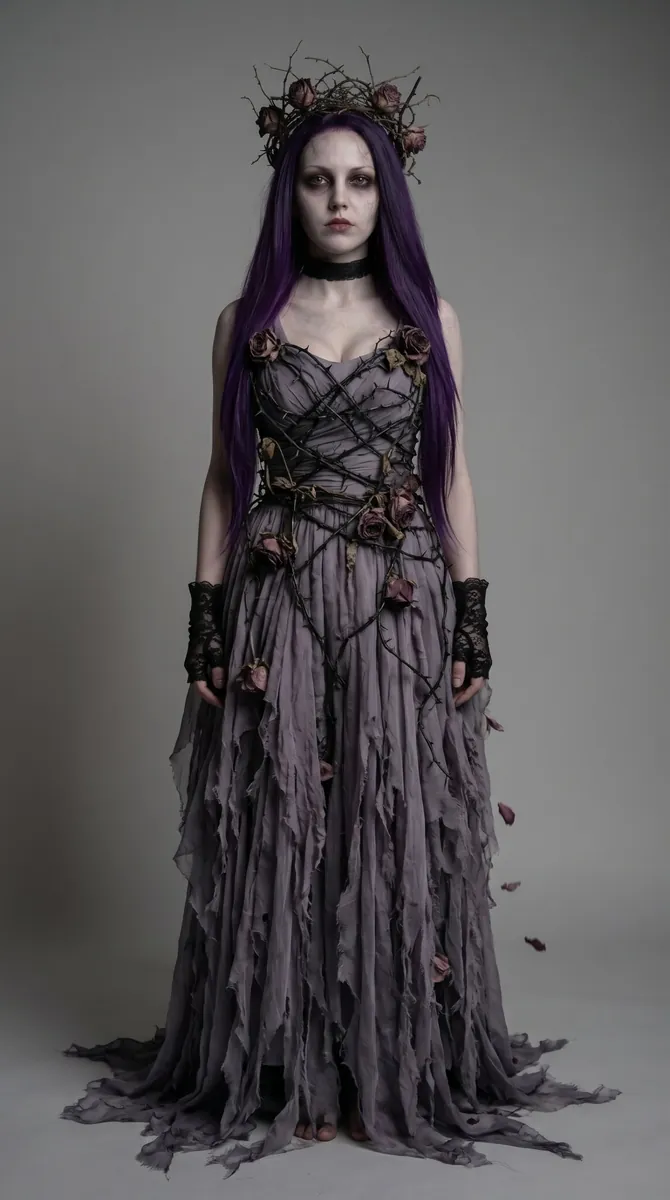
Use the woman from the reference image: keep her exact face, long straight dark purple hair and black choker. Full-body photo, neutral grey studio background, soft cinematic lighting, photorealistic.
Outfit: Tim Burton style "withered garden queen" — long tattered grey-violet chiffon gown with a moderate neckline, bodice wrapped in dry black thorny vines and wilted dark roses, petals falling from the skirt, a crown of dead roses and twisted twigs, fingerless black lace gloves.
Makeup: pale grey-tinged skin, dark smudged eyes, faint vein-like lines on her temples, dried-rose lips. Melancholic, haunting look. No text, no logos.
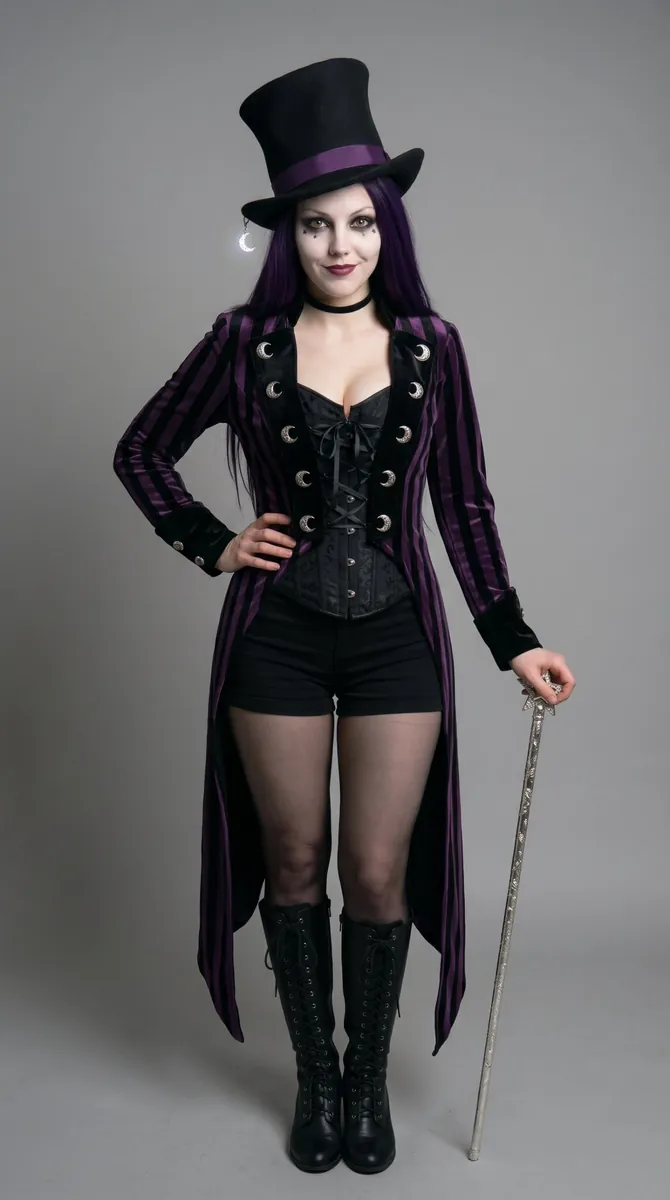
Use the woman from the reference image: keep her exact face, long straight dark purple hair and black choker. Full-body photo, neutral grey studio background, soft cinematic lighting, photorealistic.
Outfit: Tim Burton style "moon circus ringmistress" — black and deep purple striped tailcoat with silver crescent-moon buttons, fitted black corset vest with a moderate neckline, short black shorts with sheer black tights, tall black boots, a crooked tall top hat with a tiny glowing moon hanging from its brim, a thin silver cane topped with a star.
Makeup: pale skin, dark dramatic eyes with silver stars at the corners, deep berry lips. Mischievous, theatrical smile. No text, no logos.
Prompt del vídeo
Faithfully follow the motion paths and timing from @video1. Use @video1 only as a motion and timing guide; never copy its person, outfits or room.

Format: 9:16, 1080p, 15 seconds. Fixed 90-degree overhead camera with no camera movement.

Use @image1 as the permanent Gothic room, exactly as shown: purple velvet sofa on the left, marble floor, candles, and the ornate ceiling fan in the foreground at the top of the frame.

FACE LOCK — HIGHEST PRIORITY:
@image2, @image3, @image4, @image5 and @image6 all show the same woman: long straight dark purple hair and black choker. Keep her exact face, face shape, skin tone and body proportions identical in every look. Only the outfit, makeup and accessories change; her facial structure never changes. Keep her face clearly visible in every look. Never use the poses or grey studio backgrounds from the images.

Preserve the opening action from @video1: the woman rolls off the sofa, lands flat on her back, and presses the remote. The ceiling fan remains still before the click and rotates steadily afterward.

After landing, she stays on her back, head toward the top of the frame, feet toward the bottom, legs extended, and full outfit visible.

Timeline:

0–5s — @image2:
The complete black and white striped look: striped corset dress with a spiral skirt and black tulle, striped tights, black buckle boots, tiny top hat with a spiral feather, spiral drawn on her cheek. Reproduce the rolling, falling, landing and remote-control action from @video1.

6–7s — @image3:
A passing fan blade completely hides the transition and reveals the complete broken porcelain doll look: ivory and lilac lace dress with puffed sleeves, big lilac bow, white frilly socks, black Mary Jane shoes, cracked porcelain makeup with rosy cheeks and small heart-shaped red lips. She opens both hands outward and blinks slowly like a doll.

8–10s — @image4:
The next blade reveals the complete music box ballerina look: black velvet bodice, black and purple torn tutu, silver wind-up key on her back, painted doll joints on elbows and knees, black pointe shoes with crossed ribbons, small silver tiara. She lifts both arms gracefully above her head and gives a slow, eerie smile.

11–13s — @image5:
The next blade reveals the complete withered garden queen look: long tattered grey-violet gown wrapped in black thorny vines and dried roses, crown of thorns and dead roses, black lace fingerless gloves, petals scattered on the floor around her. She slowly crosses her hands over her chest and turns her head slightly.

14–15s — @image6:
The final blade reveals the complete moon circus ringmistress look: black and purple striped tailcoat with silver crescent-moon buttons, black corset, black shorts with sheer tights, tall lace-up boots, tall black top hat with a purple band and a small hanging moon, silver star cane. She holds the cane across her body, gives a mischievous smile and taps the hat brim with one finger.

Every transformation must be completely concealed by a passing fan blade. Never blend outfits, makeup or accessories.

Audio: remote click, soft fan sound, and a light whoosh at each transition. No dialogue or background music.

No facial drift, face replacement, mannequin face, hidden face, plastic skin, body deformation, extra limbs, missing accessories, mixed outfits, camera movement, or background changes.
< Paseo gótico de pareja />
Cómo hacerlo
- Crea las imágenes con estos prompts, adjuntando la hoja de personaje de tu avatar (o una foto tuya) como referencia.
- En PixVerse, busca el vídeo en la galería de vídeos públicos.
- Pon tus imágenes en lugar de las originales: la viuda de las polillas como
@image1y el guardián del reloj como@image2. - Modifica el prompt con el de abajo, adaptándolo a tus personajes, y genera con Seedance 2.5.
El vídeo de la galería solo se usa como guía de movimiento: tus personajes sustituyen a los originales.
Las imágenes y sus prompts
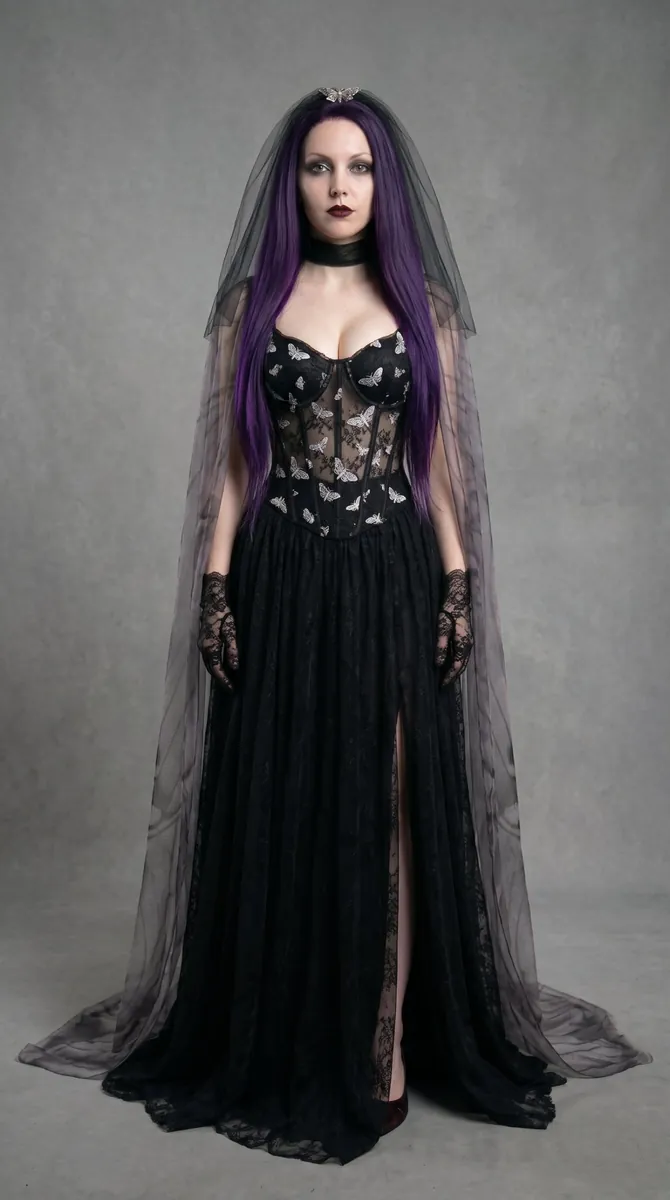
Use the woman from the reference image: keep her exact face, long straight dark purple hair and black choker. Full-body photo, standing, facing the camera, neutral grey studio background, soft cinematic lighting, photorealistic.
Outfit: elegant gothic "moth widow" look — black sheer lace corset gown with tiny silver moths embroidered across the bodice, moderate neckline, long flowing skirt with a high side slit, translucent dusty-grey moth-wing cape attached at the shoulders, delicate black lace gloves, a short black mourning veil pinned with a silver moth brooch.
Makeup: pale skin, smoky charcoal eyes with silver shimmer, dark burgundy lips. Calm, magnetic gaze. No text, no logos.
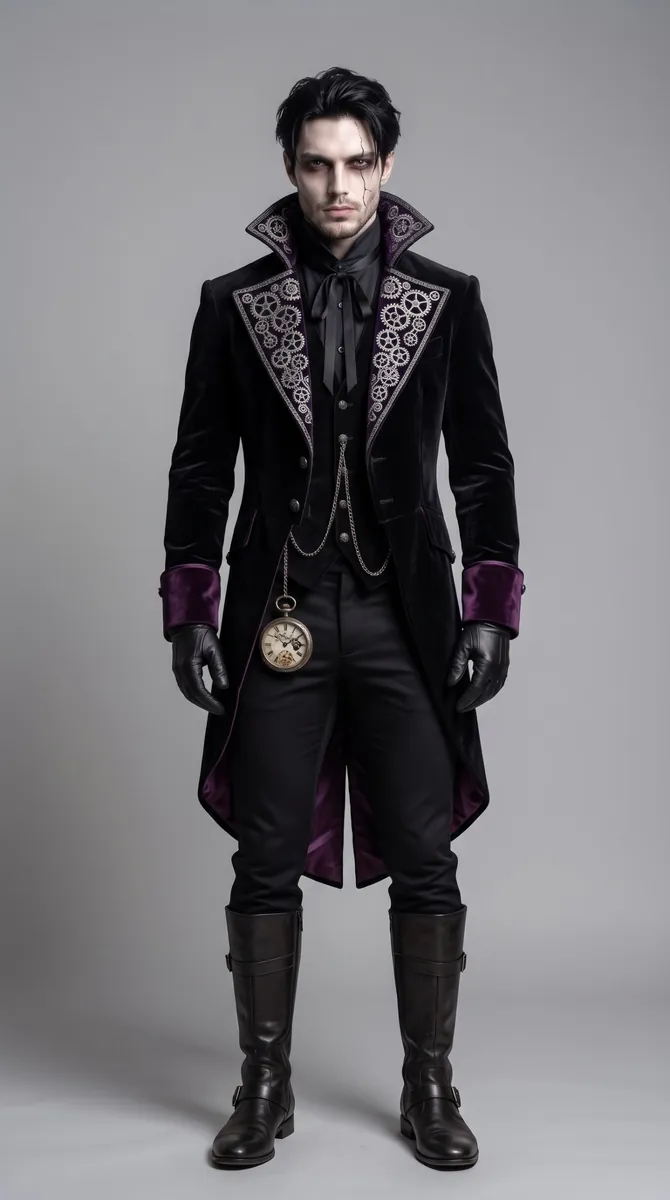
Use the man from the reference image: keep his exact face and dark hair. Full-body photo, standing, facing the camera, neutral grey studio background, soft cinematic lighting, photorealistic.
Outfit: gothic "clockwork guardian" — black velvet tailcoat with deep purple lining, high black collar, silver clock gears embroidered along the lapels, a broken pocket watch hanging from a long chain, black leather gloves, a black ribbon tied at the neck.
Makeup: pale skin, dark shadow around the eyes, a thin crack line painted down one cheek like broken porcelain. Composed, intense look. No text, no logos.
Prompt del vídeo
@image1 Gothic moth widow woman with long straight purple hair, black lace corset gown with silver moths, sheer grey veil; @image2 Gothic clockwork gentleman with black hair, black velvet tailcoat with silver gear embroidery, pocket watch. Match @video1 Cosplay Walk camera: shoes first, walk forward, pan up to faces, wider two-shot, deadpan. Night Halloween street with fog and candlelight. Keep faces and costumes exactly from images.
< La máscara />
Cómo hacerlo
- Busca la plantilla de efecto en la sección de plantillas de PixVerse.
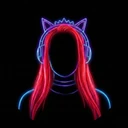
- Sube una imagen de tu personaje. Yo usé esta de Nyxia.
- Genera: esta no necesita prompt.
La imagen
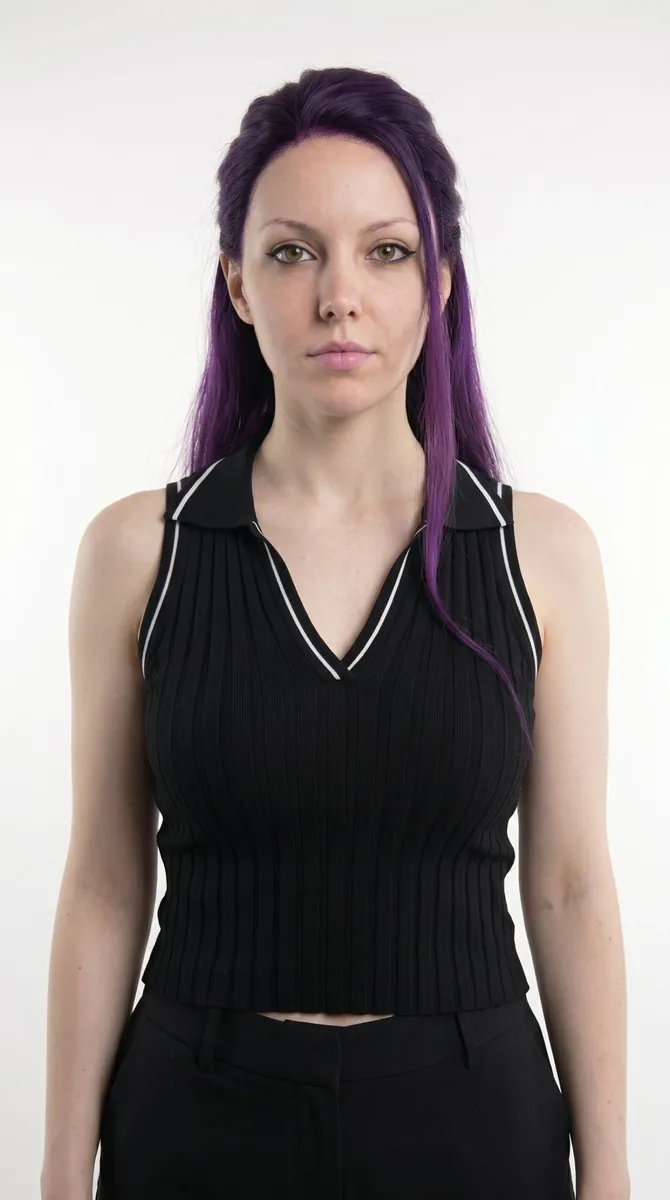
Todos estos vídeos están hechos en PixVerse
Probar PixVerse< Aprende a hacerlo paso a paso />
En mi curso enseño a hacer esto paso a paso, con cada modelo y cada plataforma. Plazas de fundador/a limitadas.
Las primeras 100 personas entran con precio de fundador/a en LIDERA: 29€/mes en lugar de 39€.
- Precio de fundador/a bloqueado para siempre
- Acceso prioritario antes de la apertura general
- Todos los tutoriales completos, en vídeo y paso a paso
- Resuelvo tus dudas directamente en la comunidad
< Más recursos gratis />
 Vídeos generados con IA. Personajes: Nyxia y Kaian, avatares de Lid.IA.
Algunos enlaces de esta página son de afiliada: si te registras con ellos no pagas nada extra y me ayudas a seguir creando recursos gratis.